Platform How It Works Role Play Walkthroughs Analytics & Insights Articles Case Histories Learning Strategies Sales Enablement Artificial Intelligence Results Pricing Watch About Free Offers
Interactive Walkthroughs

Train Muscle Memory,
Not Just Memory

Watching a software demo doesn't build skills. REACHUM's interactive walkthroughs put learners inside real screens—clicking, deciding, doing—until competence is proven, not assumed.

See a Live Demo →
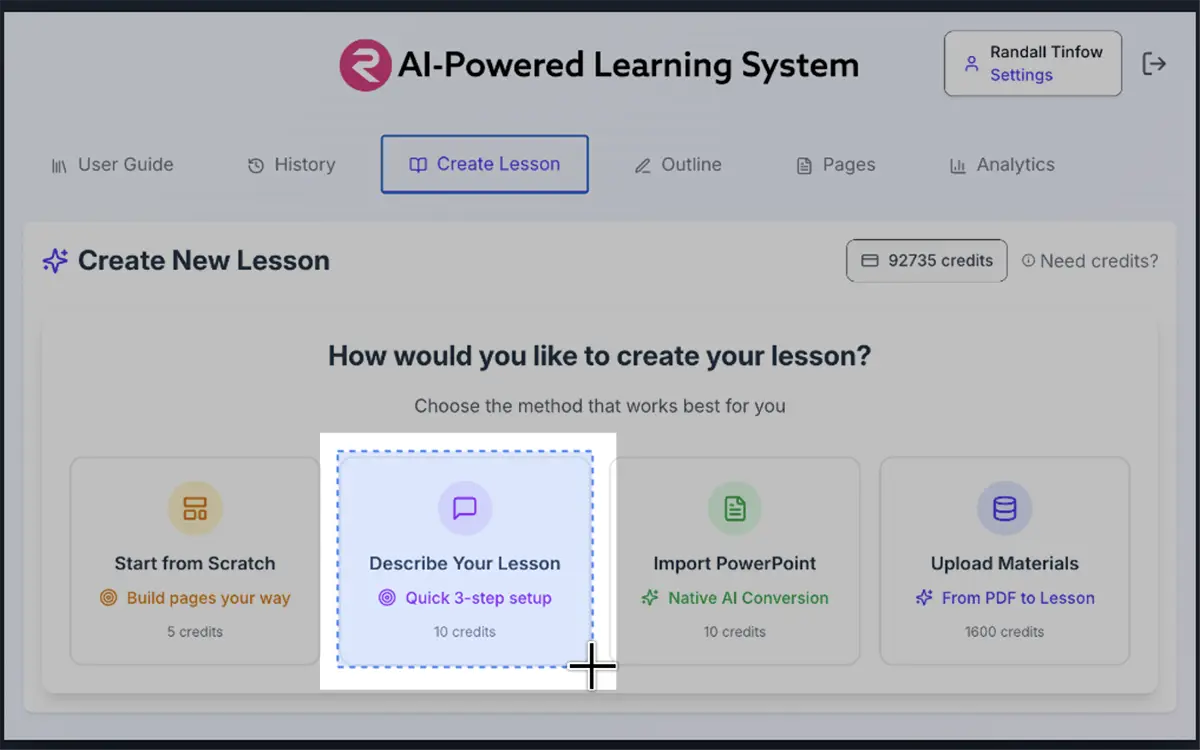
REACHUM walkthrough editor showing a hotspot drawn over a software screenshot

Guided Practice on Real Screens

A walkthrough is a hands-on exercise, not a quiz. Learners see an actual screenshot of software, a diagram, or a procedure—and must click the correct target to advance. Each step builds toward real-world competence.

1

Show the Screen

A real screenshot or image is displayed—a software UI, equipment diagram, process flowchart, or anything your workforce needs to navigate.

2

Learner Finds the Target

The correct click area is hidden. The learner reads the instruction and must locate and click the right spot before advancing—no guessing, no shortcut.

3

Learn Why, Then Move On

After a correct click, an explanation teaches the reasoning behind the step. Wrong clicks trigger a hint. Every interaction is recorded.

1
Step Per Slide — Clean, Focused Practice
3
Hotspot Types for Any Use Case
<2s
Latency on Wrong-Click Data to Dashboard
100%
Every Click Tracked and Logged

Eight Steps. Hours, Not Weeks.

Any subject-matter expert can build a walkthrough. No coding, no video production—just your screenshots and REACHUM's image editor.

Start with a Screenshot

Take a screenshot of any software screen, diagram, or photo. Add it to a slide, open the Image Editor, and draw a rectangle over the target area using the Hotspot tool.

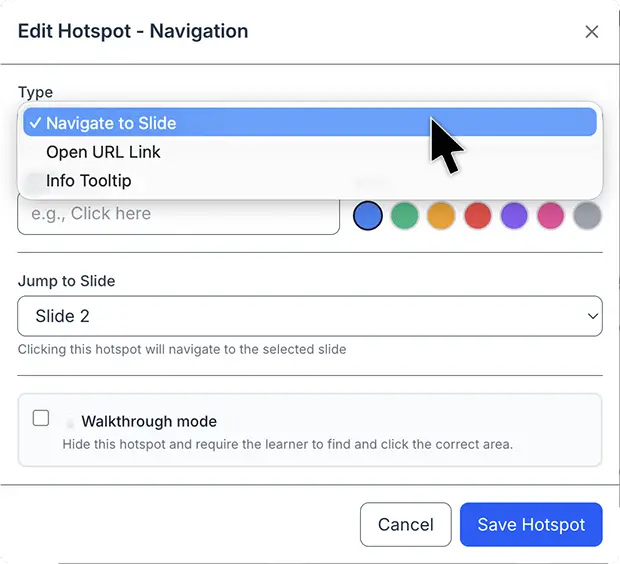
Set the type to Navigation, check the Walkthrough Mode checkbox, write the instruction ("Click the Settings gear icon"), and optionally add a hint and explanation.

Repeat for each step—each slide is one step in the workflow. A 10-step Salesforce onboarding sequence takes minutes to build.

REACHUM hotspot editor showing Walkthrough Mode with instruction, hint, and explanation fields

One Tool. Multiple Learning Modes.

Every hotspot serves a different purpose. Use them individually or combine them in a single image to create rich, explorable learning experiences.

Type 2

Info Popup

Opens an informational overlay directly on the image. Ideal for anatomy diagrams, equipment photos with component callouts, and product images with spec details.

Learners explore at their own pace without leaving the slide.

Type 3

External Link

Links to any URL when clicked. Connect learners directly to documentation, reference materials, support portals, or supplementary resources.

Opens in a new tab—learners stay in the lesson flow.

Every Click Teaches Something

Walkthroughs don't just test—they teach. Three layers of feedback guide learners toward correct performance and reinforce the reasoning behind every step.

Any Screen. Any Process. Any Industry.

Walkthroughs work wherever your workforce needs to navigate a tool, follow a procedure, or learn a system—not just software.

💻

Software Onboarding

Salesforce, SAP, Workday, custom CRMs. Walk new hires through real screens until navigation is second nature.

🔧

Internal Tool Training

Proprietary systems, admin dashboards, internal portals. Step-by-step practice with zero IT involvement.

🏥

Medical & Clinical

Anatomy diagrams, equipment photos, clinical workflow diagrams with component-level explanations and branching paths.

🏭

Equipment & Operations

Photos of physical equipment with clickable components. Train technicians on part identification and operating procedures.

🌿

Compliance Procedures

Flowcharts and decision trees with branching navigation. Certify that employees can navigate the correct path, not just recognize it.

🗺️

Location & Site Training

Maps, facility diagrams, and site layouts linking to location-specific details, safety procedures, or contact information.

🛍️

Product Knowledge

Product images with clickable specs, feature callouts, and links to deeper documentation. Train sales and support teams at scale.

📐

Process Diagrams

Flowcharts, org charts, and workflow maps. Teach learners to navigate processes, not just read about them.

Experience a Walkthrough

See what your learners will see. We'll create a personal walkthrough account and send you a link to a live example—so you can click through it yourself before committing to anything.

Get a Personal Demo Link

No sales call required. Submit your work email and we'll set up a learner account so you can experience a walkthrough firsthand.

  • Hands-on walkthrough you can click through at your own pace
  • See instruction, hint, and explanation layers in action
  • Experience the learner view exactly as your team would
  • Personal link delivered within one business day

Request Your Demo Link

We'll use your work email to create a learner account and send your personal walkthrough link.

Please use your work email — we'll use this to create your learner account.

You're on the list.

We'll create your learner account and send your personal link within one business day.

See Walkthroughs in Action

Schedule a free setup call and we'll build a walkthrough for your software or process—so you can see exactly what your learners will experience.

Get Your Free Setup Call →