Setup guide
Install Conversation to Slides
Add the skill to Claude once, and it turns any conversation into clean, measurable slides whenever you ask.
Before you start
Conversation to Slides is a Claude skill. It works on Free, Pro, Max, Team, and Enterprise plans, and needs Claude's code execution turned on (that's Step 1).
Have your conversation-to-slides ZIP ready — the file containing the skill folder with its SKILL.md inside.
Turn on code execution
Open Settings → Capabilities and switch on Cloud code execution and file creation — the description even notes it's required for skills. Skills won't appear until this is on. On Team and Enterprise plans, an organization owner enables this in Organization settings.

Open your Skills
In the sidebar, under Customize, click Skills. This is where every skill you add lives, alongside Claude's built-in ones.

Add a skill
Click Add in the top-right, then choose Upload a skill from the menu.

Choose the file
Select your conversation-to-slides ZIP. Claude reads what's inside and shows you a summary of what the skill does.

Turn it on
Your new skill appears in the list with a toggle. Switch it on. Off means Claude ignores it — the most common reason a freshly added skill seems to “do nothing.”

Try it
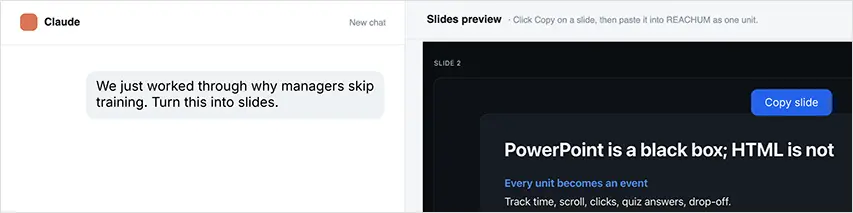
Open any chat, think something through or paste your material, then say: “Turn this into slides.” There's no button and no command — asking is what runs it.
If something's off
No Skills section?
Code execution isn't on. Go back to Settings → Capabilities and enable it. On Team or Enterprise, ask your organization owner.
Added it, but nothing happens?
Two things to check: the skill's toggle is on, and you actually asked for slides — say “turn this into slides” in the chat.
Upload rejected?
The ZIP must contain the skill folder with its SKILL.md inside, and the folder name should match the skill name.